![Logo_Icon-1.png]](https://support.provision.io/hs-fs/hubfs/Logo_Icon-1.png?height=40&name=Logo_Icon-1.png)
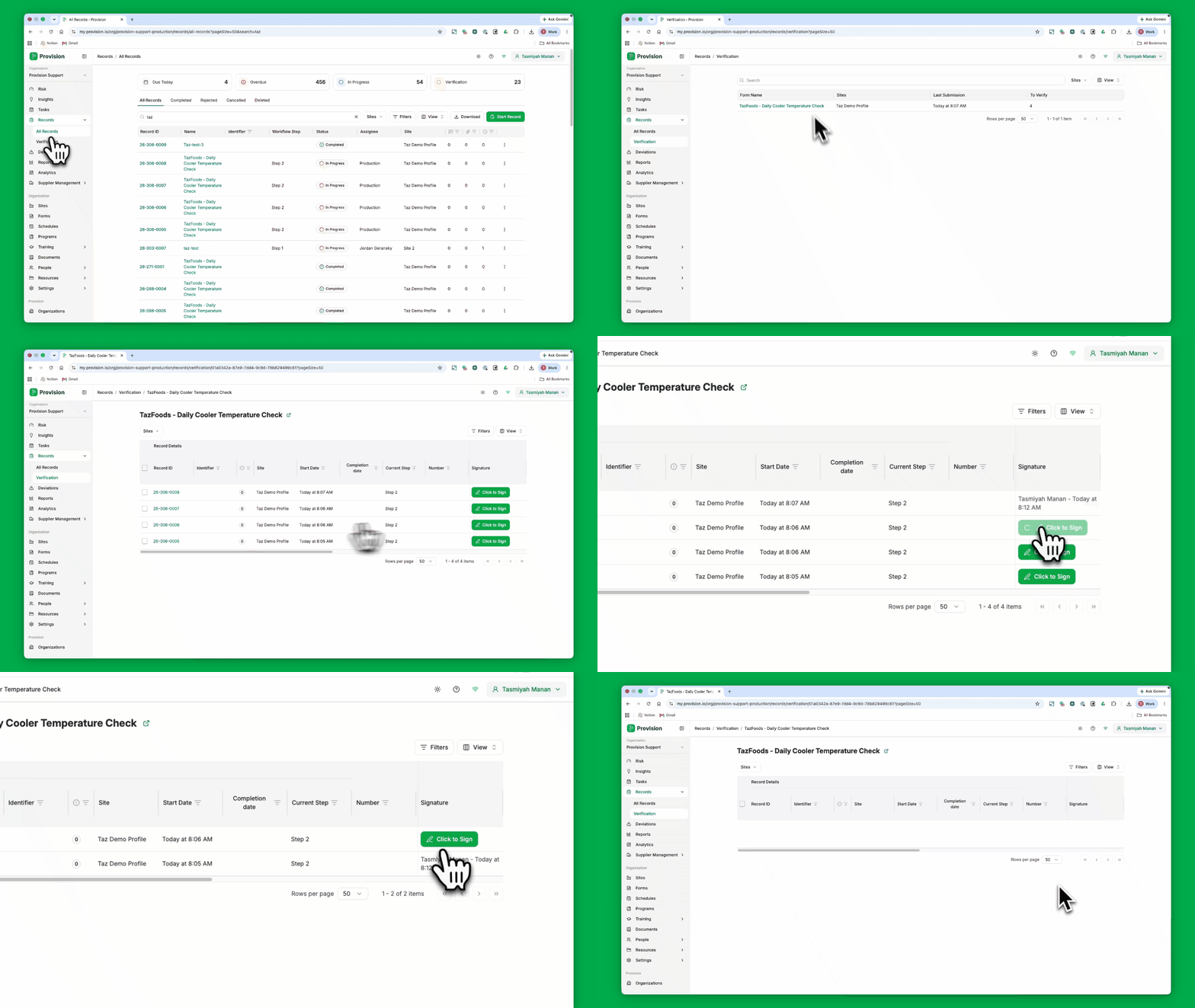
Sign Records directly from the Verification tab without opening each one
📋 Before you begin
Quick verification is only available on forms where the verification step has been set to the Quick Verify step type. If your form does not appear under Records → Verification, it has not been set up for it. If you require asisatnce setting this up please reach out to the Customer Support team
- Navigate to the Records module.
- Select the Verification tab.
- Choose how you wish to verify your Records:
- One at a time: Select the green Click to Sign button on the Record's row. Your signature is added to the Record without you needing to open it.
- In bulk: Check the box at the top left of the table to select all Records at once, or check the box beside each Record you wish to verify. Then select the Sign button at the bottom of the screen. Note: The same signature is applied to every selected Record.
For more detail on signing many Records at once, check out our article How to Bulk Verify Records.
Note: Only users assigned to the form's Verification step will see the Quick Verify option. Records that need a comment, an attachment, or a rejection should be opened individually and reviewed using the standard process.
Bulk verification cannot be undone as a batch. To change a verified Record, override each Record individually.
Your signature will be applied to the selected Records, and they will be marked as verified.