![Logo_Icon-1.png]](https://support.provision.io/hs-fs/hubfs/Logo_Icon-1.png?height=40&name=Logo_Icon-1.png)
Schedules let you assign one or more forms to a team or individual on a repeating basis — daily, weekly, monthly, or yearly. Once a schedule is created, tasks appear automatically on your team's task list without any manual assignment.
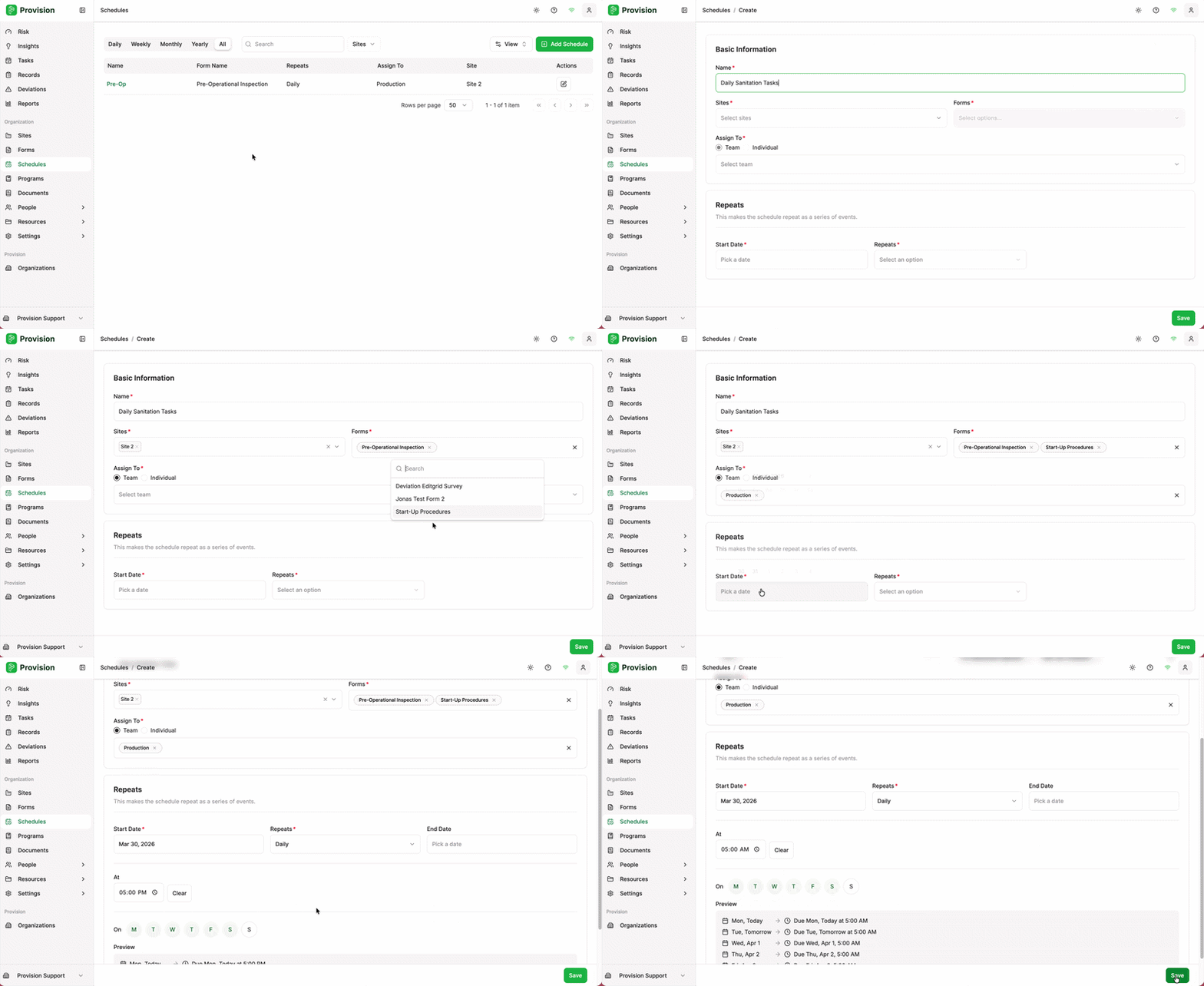
Add a Schedule
- Navigate to Schedules using the left-hand navigation menu.
- Select the Add Schedule button [+] in the top right corner.
- In the Basic Information section, fill in the following:
- Name — Give your schedule a clear name (e.g., Daily Sanitation Tasks or Weekly Pre-Op Checks). This is for your reference only and won't be visible to operators.
- Sites — Select the site(s) this schedule applies to.
- Forms — Select one or more forms to include. If you select multiple forms, a separate task series will be created for each form under this schedule.
- Assign To — Choose Team or Individual, then select from the dropdown. Assigning to a team means all members of that team will see the task.
- Team: All Users in the team will be assigned the task. Only one needs to complete the task.
- In the Repeats section, fill in the following:
- Start Date — The date you want the first task to appear on your team's task list.
- Repeats — Choose how often this task recurs: Daily, Weekly, Monthly, or Yearly.
- Depending on the repeat frequency, you will see additional options:
- Daily — Select which days of the week the task should appear. Monday through Friday are selected by default. Toggle Saturday and Sunday on if your team works weekends.
- Weekly / Monthly / Yearly — Set the specific interval and recurrence day.
- Time — Optionally set a due time for each task (e.g., 11:59 PM or 4:00 AM). If left blank, the default due time is 5:00 PM local time.
- End Date — Leave this blank if you want the schedule to run indefinitely. Only set an end date for seasonal tasks with a known stop date. You can always delete the schedule manually to stop it.
- Open Window — Optionally set how long each task should remain open. For example, if a weekly task goes live on Monday and is due Friday, set the start to Monday and the due date to Friday. Tasks appearing on the team's list will show as on time until the due date, then overdue.
- A preview at the bottom of the form will display what your schedule looks like — use this to confirm the dates and intervals are correct before saving.
- Select Save.
Tip: If you selected multiple forms, Provision will create one task series per form. You can view and edit each series individually from the Schedules list.
Note: Team members must accept their invitation and be added to the correct team before scheduled tasks will appear on their task list.