![Logo_Icon-1.png]](https://support.provision.io/hs-fs/hubfs/Logo_Icon-1.png?height=40&name=Logo_Icon-1.png)
Schedules let you assign one or more forms to a team or individual on a repeating basis. Once a schedule is created, tasks appear automatically on your team's task list without any manual assignment.
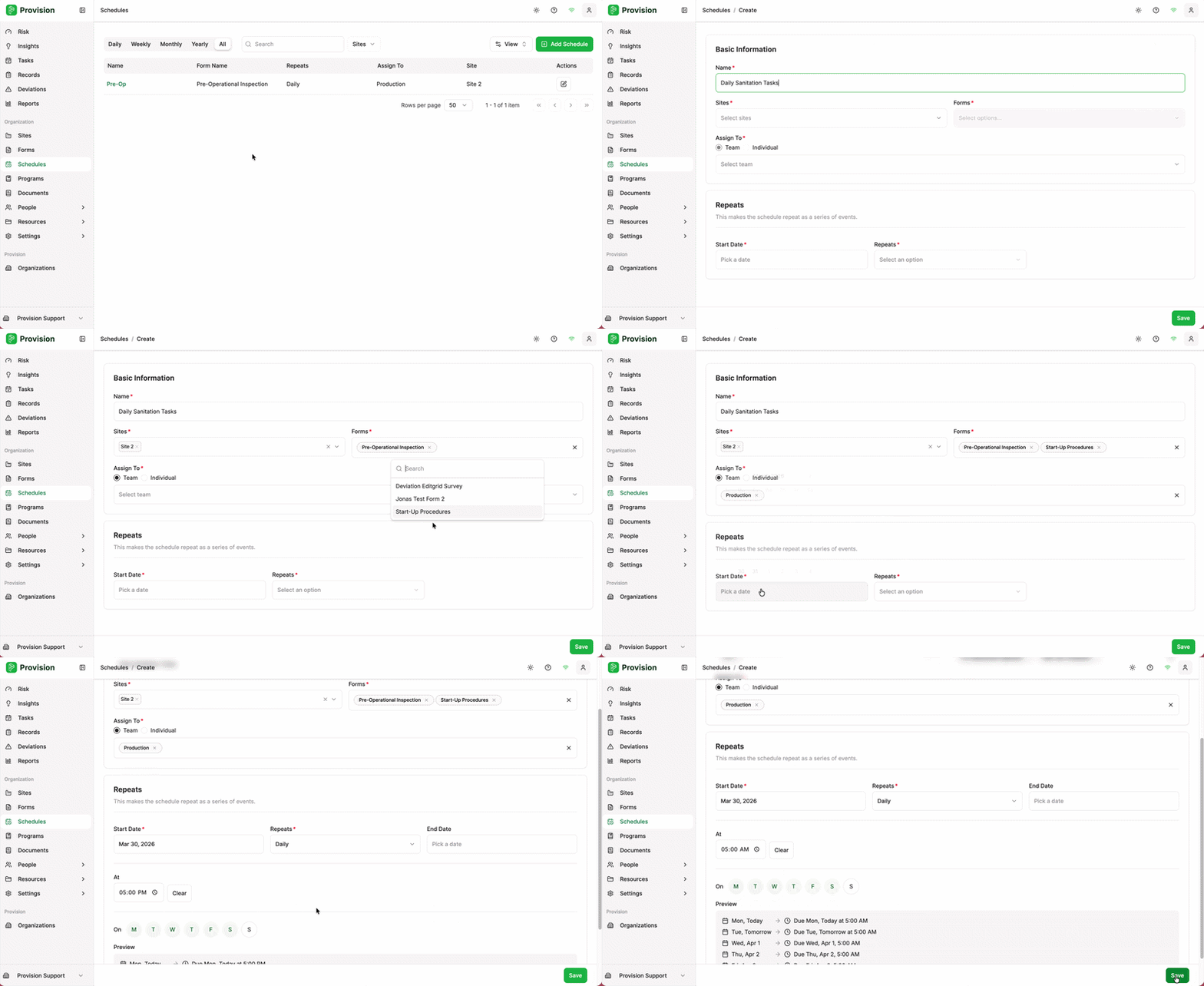
Follow the normal steps to Create a new Schedule
- In the Repeats section, fill in the following:
- Start Date — The date you want the first task to appear on your team's task list.
- Repeats — Monthly
- For Quarterly:
- Every: 3 Months
- Due: 90 Days
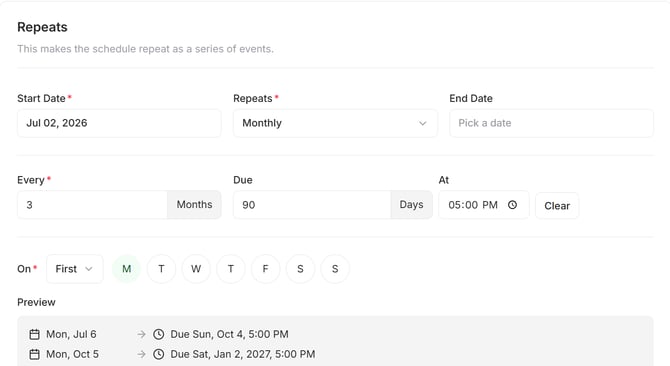
- For Bi-Annually (Every 6 months):
- Every: 6 Months
- Due: 1882 Days
- Select Save.
Tip: If you selected multiple forms, Provision will create one task series per form. You can view and edit each series individually from the Schedules list.
Note: Team members must accept their invitation and be added to the correct team before scheduled tasks will appear on their task list.