![Logo_Icon-1.png]](https://support.provision.io/hs-fs/hubfs/Logo_Icon-1.png?height=40&name=Logo_Icon-1.png)
-
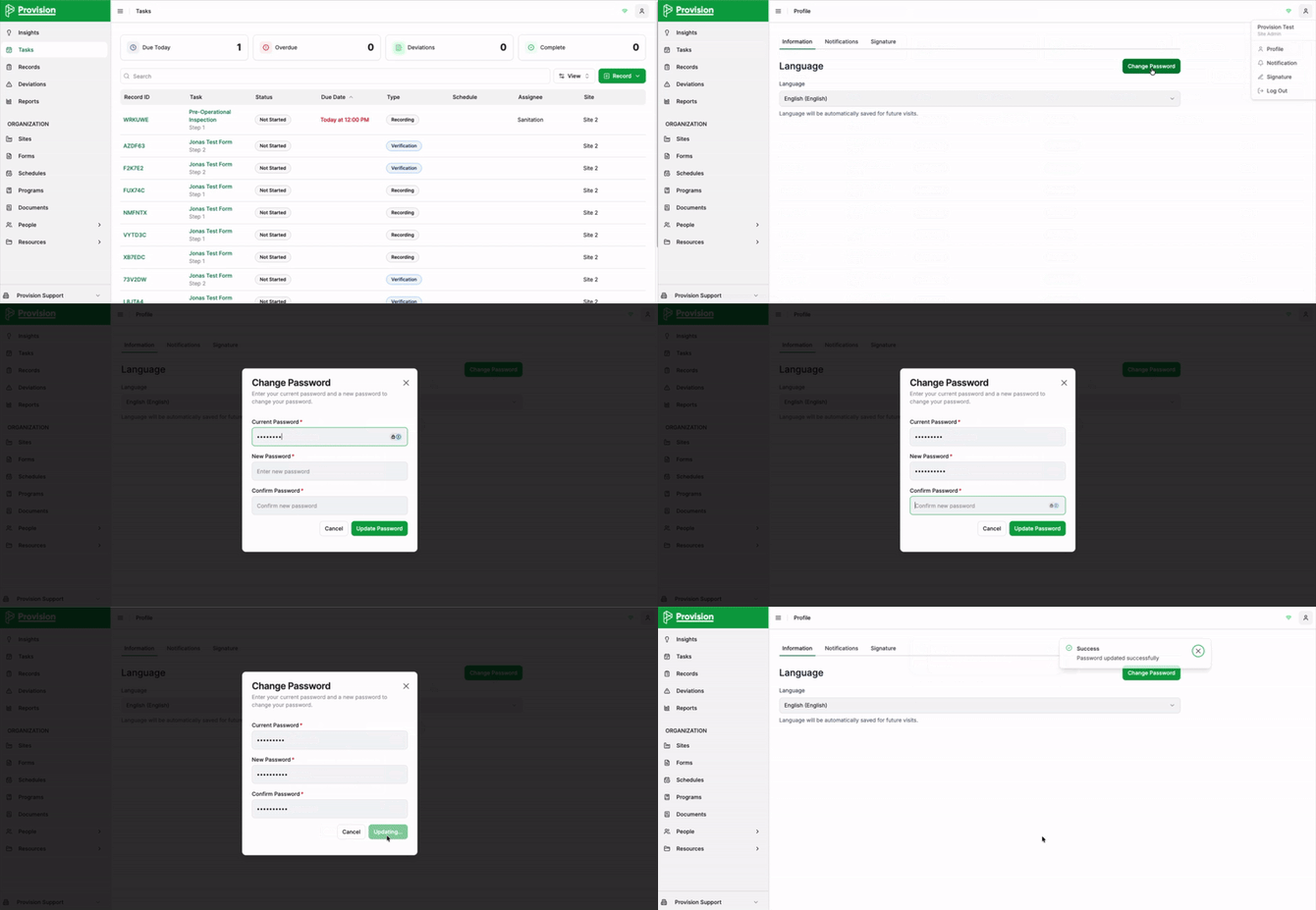
Select the Account button
 in the top right corner of the application
 -
From the dropdown menu, select Profile.
-
On the Information tab, select the green Change Password button.
-
A Change Password pop-up will appear. Enter the following details:
-
Current Password: Type your existing password.
-
New Password: Enter your new desired password.
-
Confirm Password: Re-type the new password to ensure they match.
-
-
Select the green Update Password button.
Note: You will receive a green "Password updated successfully" confirmation message once the change is complete.