![Logo_Icon-1.png]](https://support.provision.io/hs-fs/hubfs/Logo_Icon-1.png?height=40&name=Logo_Icon-1.png)
Editing a Schedule
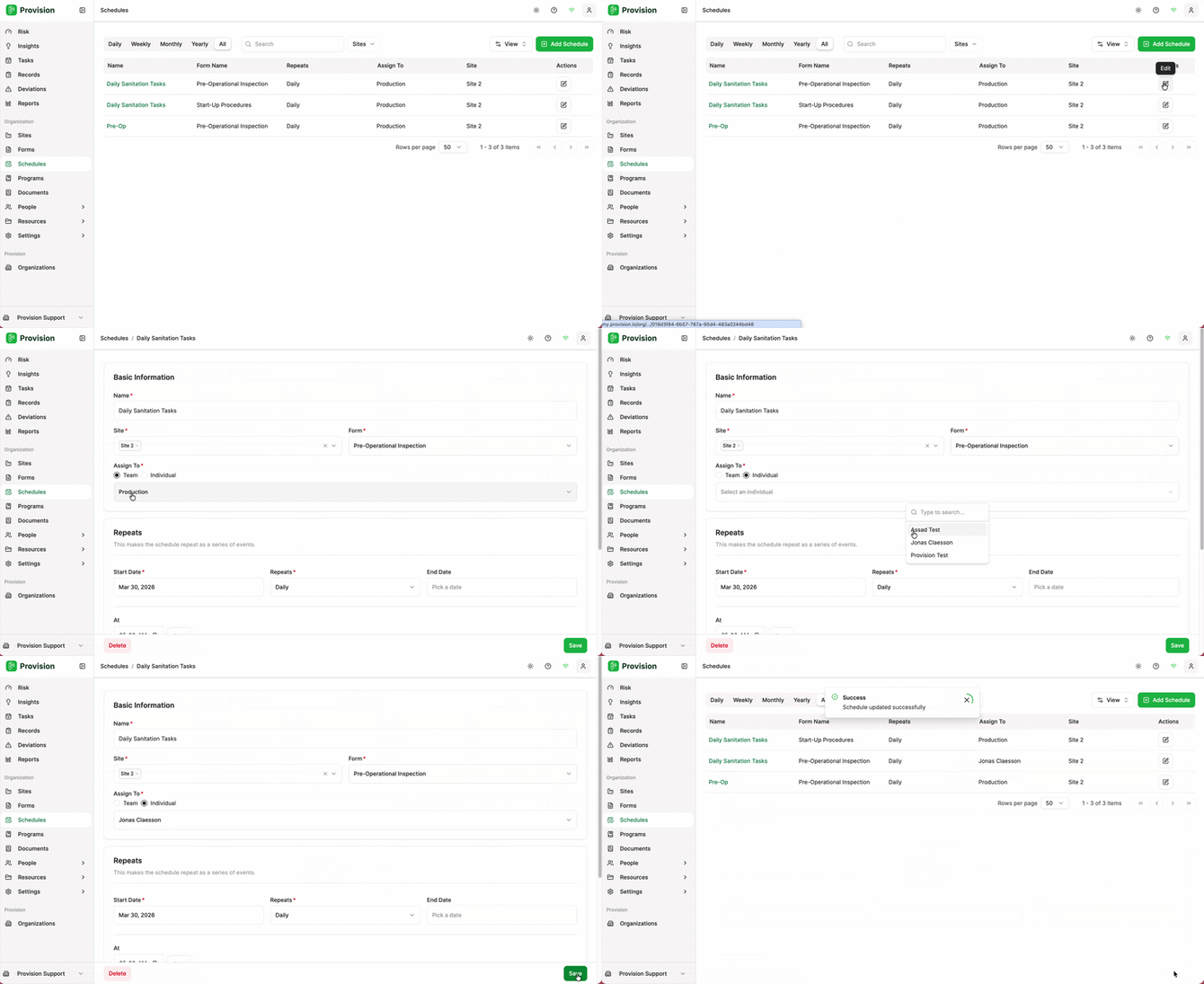
- Navigate to Schedules using the left-hand navigation menu.
- Find the schedule you want to update. Use the filter tabs or search bar to narrow the list if needed.
- Select the edit icon in the Actions column, or click the schedule Name to open it.
- Update any of the following fields:
- Name, Sites, Forms, or Assign To
- Start Date or End Date
- Repeat frequency, days of the week, or due time
- Open window (the date range a task is considered on time)
- Select Save to apply your changes.
Note: Editing a schedule will apply changes to future tasks in that series. Tasks that have already been completed will not be affected.
Deleting a Schedule
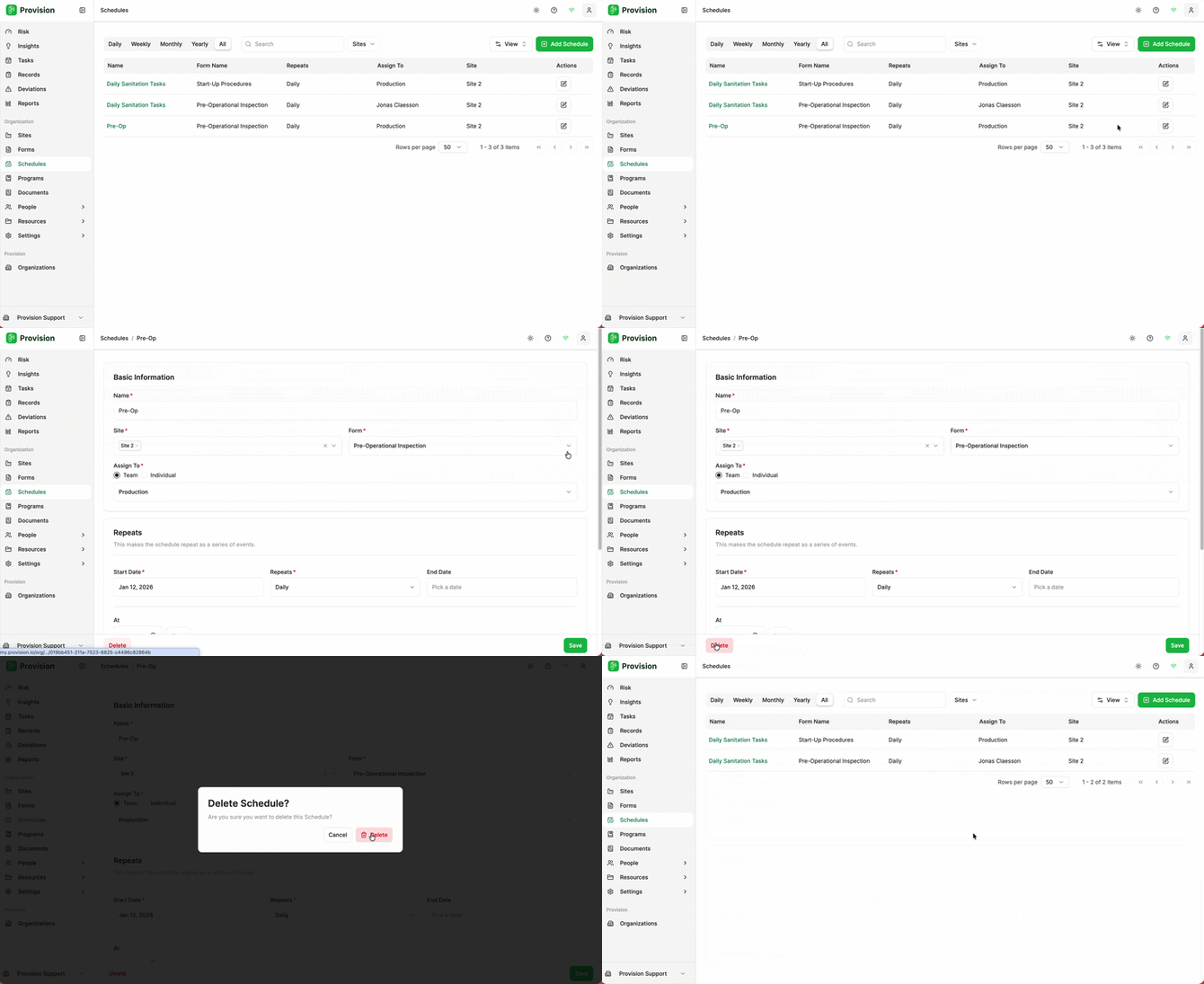
Deleting a schedule stops all future tasks in that series from appearing on your team's task list. This is the recommended way to end a schedule that was set up without an end date.
- Navigate to Schedules and open the schedule you want to remove.
- Select the Delete option and confirm.
Note: Deleting a schedule does not delete records that have already been submitted. All historical submissions remain in Records.