![Logo_Icon-1.png]](https://support.provision.io/hs-fs/hubfs/Logo_Icon-1.png?height=40&name=Logo_Icon-1.png)
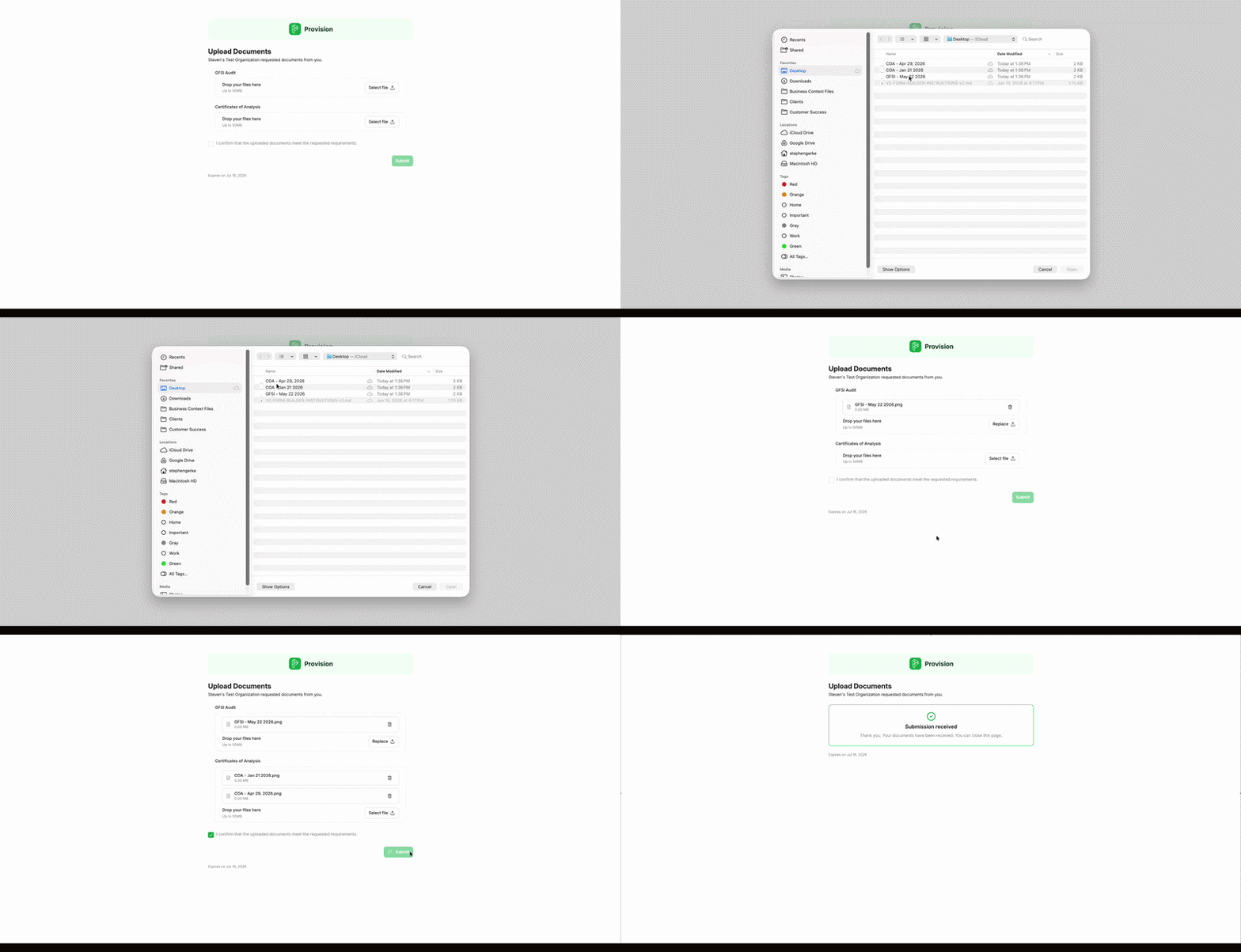
- Open the Upload Documents link from the request email you received. Note: No login is required to open the link.
- Review the requested documents. Each document is listed by name (for example, Certificates of Analysis and GFSI Audit), along with the message from the requesting organization.
- For each requested document, add your file in one of two ways:
- Drag and Drop: Drop your file directly into the Drop your files here area.
- Select file: Click the Select file button to choose a file from your device. Note: Each file can be up to 50MB.
- Once a file is added, it appears with its name and size. To swap it for a different file, click Replace. To remove it, click the trash icon.
- Check the box labeled I confirm that the uploaded documents meet the requested requirements.
- Select the green Submit button.
Note: The request link expires on the date shown at the bottom of the page. Upload and submit your documents before this date.
A Submission received confirmation will appear, letting you know your documents have been sent to the requesting organization. You can then close the page.