![Logo_Icon-1.png]](https://support.provision.io/hs-fs/hubfs/Logo_Icon-1.png?height=40&name=Logo_Icon-1.png)
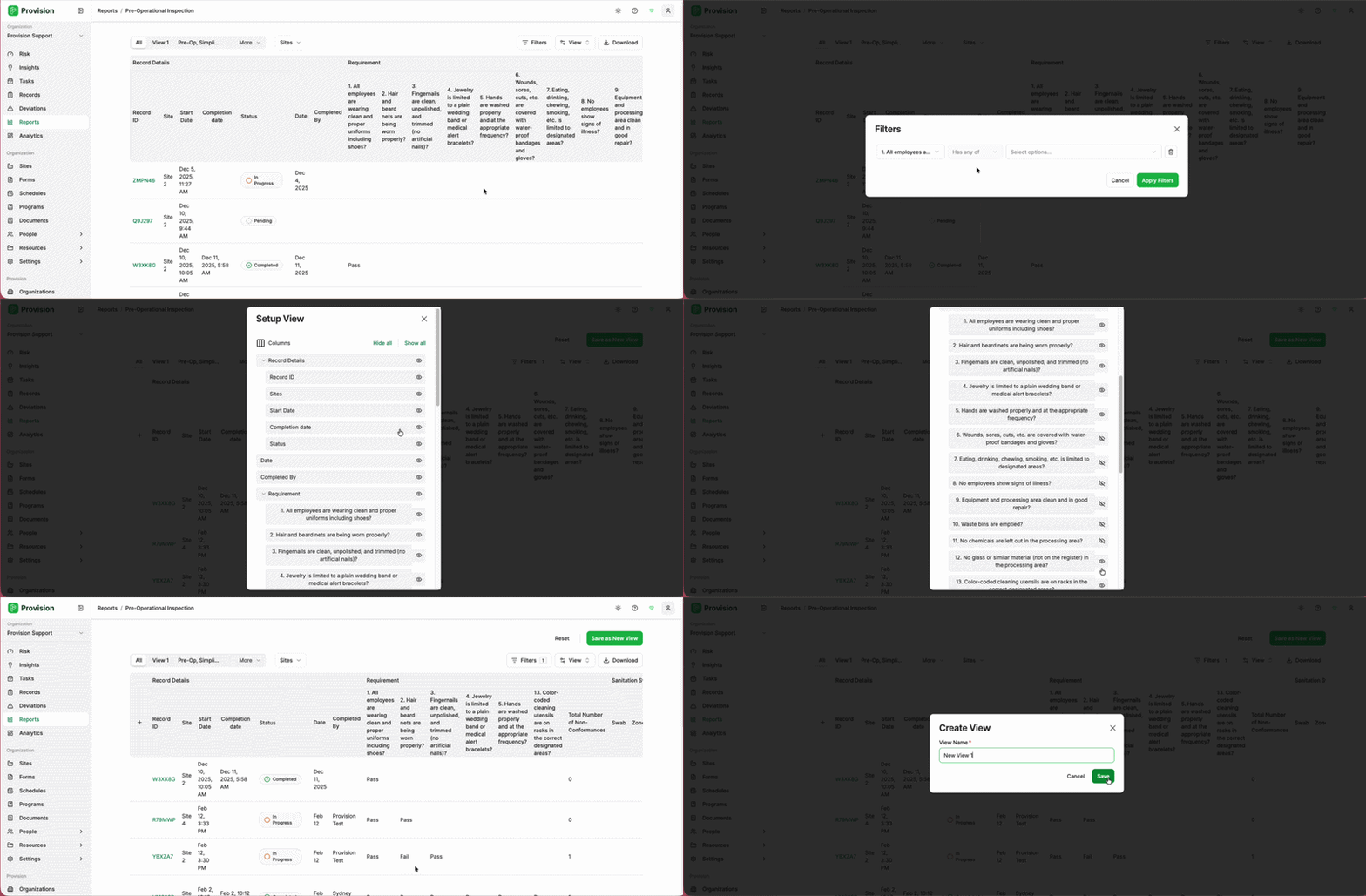
- Navigate to the Reports module and open the report you want to customize.
- In the top right corner, select the Filters button. In the Filters modal, configure your filter conditions. For each filter row, set:
- Field: Select the column to filter on (e.g., Start Date, Status, Completion date, Requirement).
- Operator: Choose a condition (e.g., Is after, Has any of).
- Value: Enter or select the value(s) to filter by.
- Select Save.
- Select the View button in the top right to open the Setup View panel. Toggle the eye icon next to each column to show or hide it in the report. Select Save when done.
- Select the green Apply Filters button. The report will refresh with your filtered results, and a Save as New View button will appear in the top right corner.
- Select the green Save as New View button in the top right corner.
- In the Create View modal, enter a name in the View Name field.
- Select Save.
The new view will be saved and appear as a tab at the top of the report, ready to use anytime by anyone.