![Logo_Icon-1.png]](https://support.provision.io/hs-fs/hubfs/Logo_Icon-1.png?height=40&name=Logo_Icon-1.png)
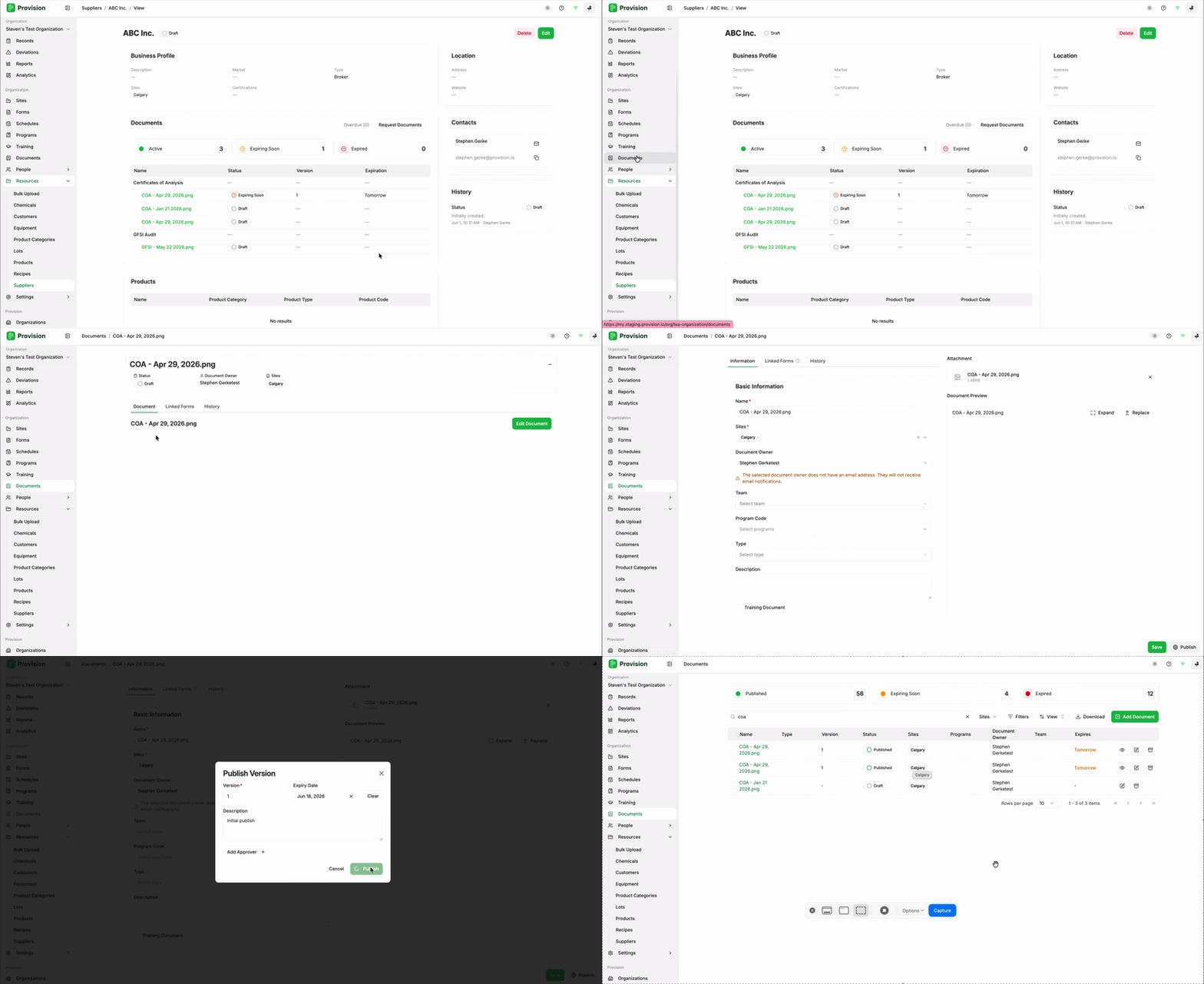
- Navigate to the Suppliers module under Resources.
- Select the supplier whose documents you want to review to open their profile.
- In the Documents section, locate the documents with a Draft status. These are the files the supplier has uploaded.
- Exit the supplier page and navigate to the Documents module.
- Search for the supplier document you are looking to review
- Select the document name to open it.
- Review the file in the Document Preview, then select the green Edit Document button.
- On the Information tab, complete the document details:
- Name: Confirm or update the document name.
- Sites: Select the applicable site(s).
- Document Owner: Assign the document owner. Note: If the selected owner does not have an email address, they will not receive email notifications.
- Team, Program Code, and Type: Set these as needed.
- Description: Add any relevant details.
- Training Document: Toggle this on if the document should be used for training.
- Select the green Publish button in the bottom right corner.
- In the Publish Version window, set the following:
- Version: Enter the version number.
- Expiry Date: Select the date the document expires, or select Clear to leave it without an expiration.
- Description: Add a note about this version (e.g., "Initial publish").
- Add Approver: Select this to add an approver for the document, if required.
- Select the green Publish button.
The document status will change to Published, and the file will appear as active under the supplier's Documents section.