![Logo_Icon-1.png]](https://support.provision.io/hs-fs/hubfs/Logo_Icon-1.png?height=40&name=Logo_Icon-1.png)
 Resolving a Deviation
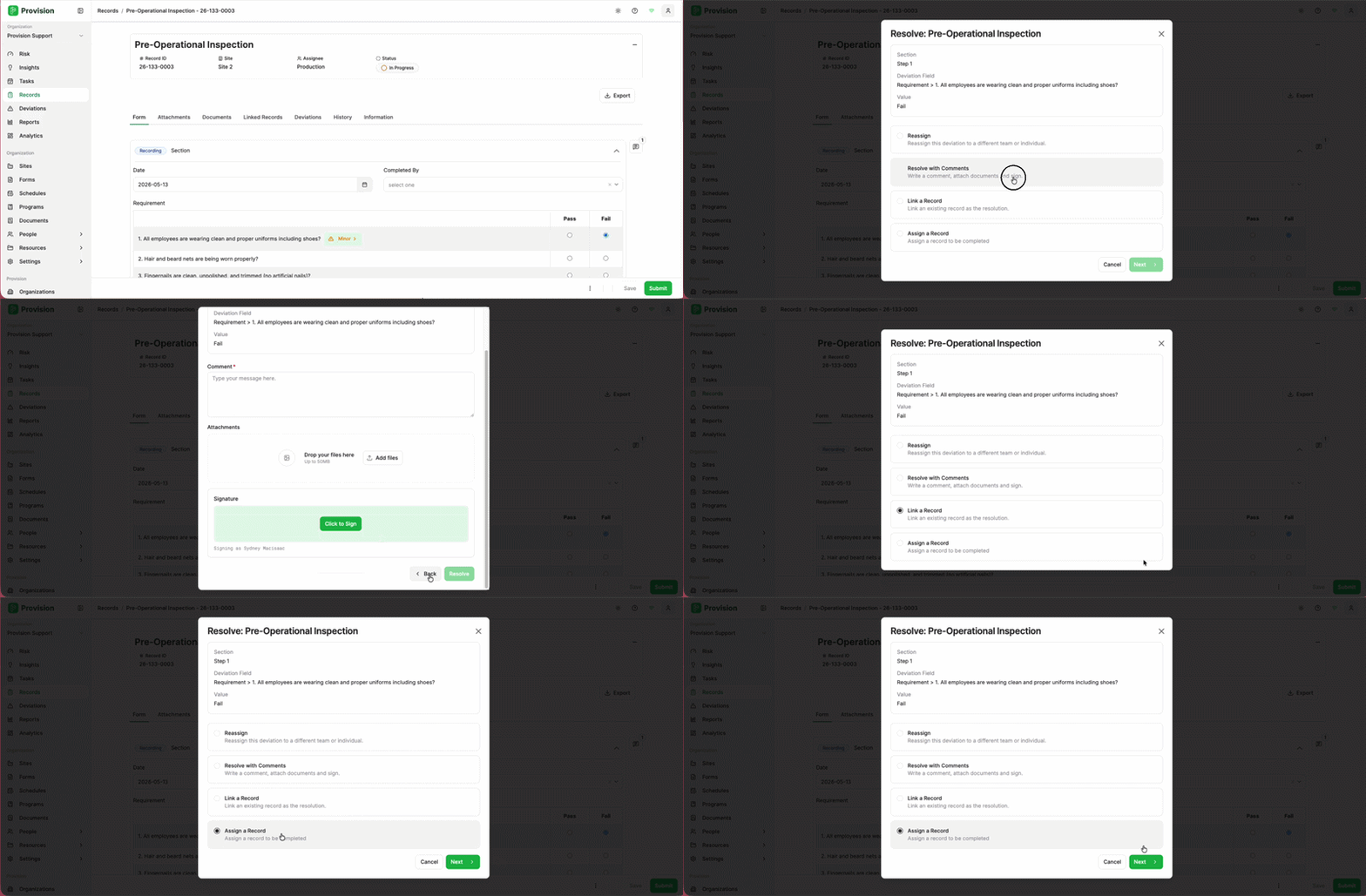
Once a deviation is identified, follow these steps to document the corrective action:
-
Locate the field with a deviation or go to the Deviations tab
-
Select the deviation icon (⚠️) next to the flagged item or the [↗] when in the deviations tab.
-
Select a resolution method:
- Reassign: Reassign this deviation to a different team or individual.
- Resolve with Comments: Write a comment, attach supporting documents, and sign.
- Link a Record: Link an existing record as the resolution.
- Assign a Record: Assign a new record to be completed as the resolution.
-
Select Next to proceed.
-
Complete the required fields based on the resolution method selected:
- Resolve with Comments: Enter a comment in the Comment field (required). Select Click to Sign in the Signature section to sign the resolution, then select Resolve.
- Link a Record: In the Link a Record modal, use the Form dropdown to filter records, then select the record to link. Optionally add a Comment. Select Link Record to confirm.
- Assign a Record: In the Assign a Record modal, set Assign To (Team or Individual), select the Team or individual, choose the Form, and set a Deadline. Select Link Record to confirm.
-
(Optional) Add evidence by selecting Add files or dragging attachments into the Attachments area.
-
Select the green Click to Sign button to apply your digital signature.
-
Select the green Resolve button to complete the process.
Tip: After a deviation is resolved, the status will update to Resolved and you can select View Details [↗] at any time to see the signature and comments associated with the fix.