![Logo_Icon-1.png]](https://support.provision.io/hs-fs/hubfs/Logo_Icon-1.png?height=40&name=Logo_Icon-1.png)
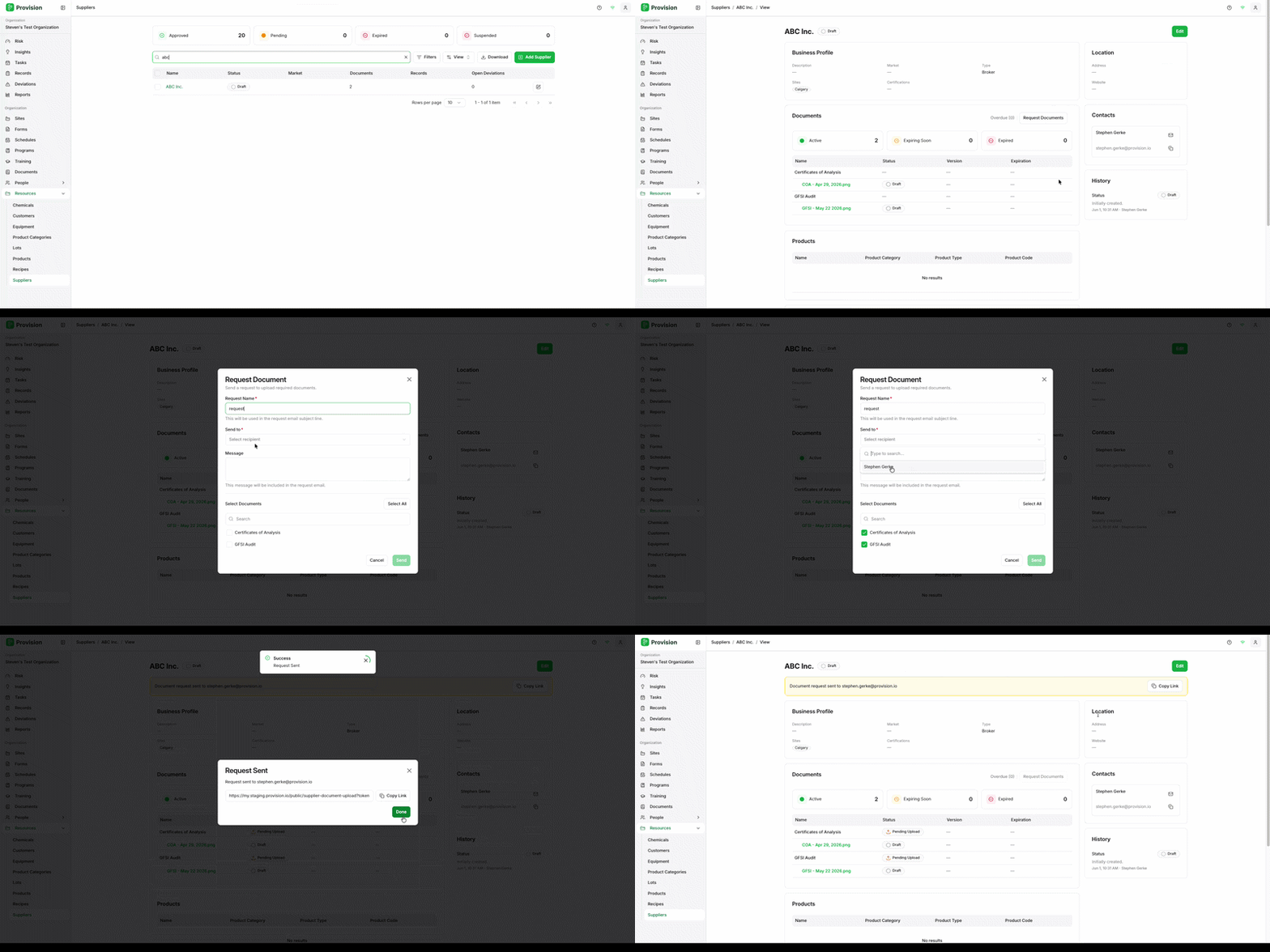
- Navigate to the Suppliers module under Resources.
- Select the supplier you want to request documents from to open their profile.
- In the Documents section, select the Request Documents button.
- In the Request Document panel, complete the following fields:
- Request Name: Enter a name for the request. This will be used in the request email subject line.
- Send to: Use the dropdown to select the recipient. Note: Recipients are pulled from the supplier's saved Contacts.
- Message: Enter a message for the supplier. This message will be included in the request email.
- Under Select Documents, choose the documents you are requesting. Use the Search bar to find a specific document, or select Select All to request every document.
- Select the green Send button.
- In the Request Sent window, select Copy Link to copy the upload link if you want to share it directly, then select the green Done button.
The requested documents will appear in the supplier's Documents section with a Pending Upload status until the supplier completes the request.