![Logo_Icon-1.png]](https://support.provision.io/hs-fs/hubfs/Logo_Icon-1.png?height=40&name=Logo_Icon-1.png)
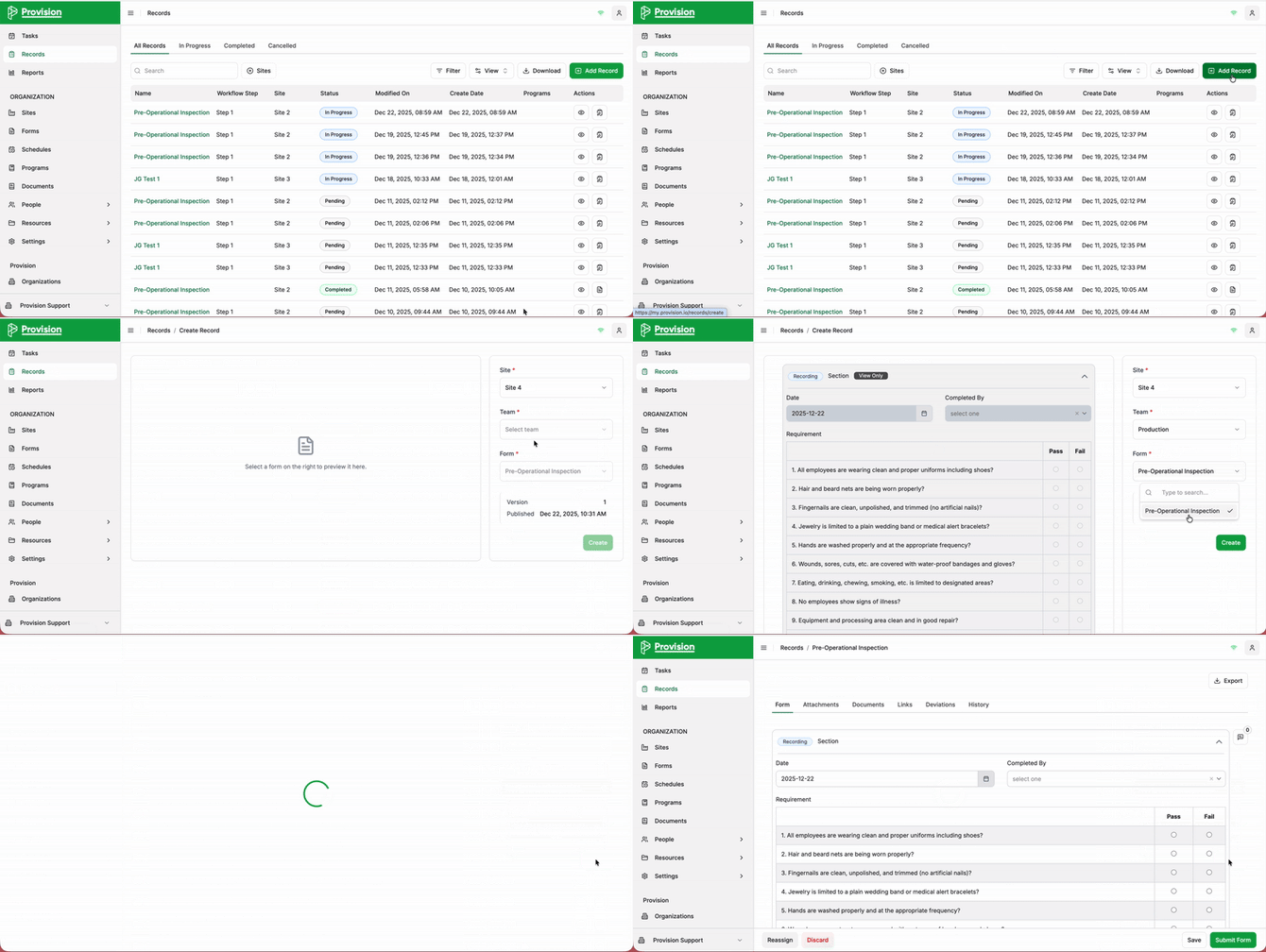
- Navigate to the Records module.
- In the top right corner of the table, select the green + Add Record button.
- In the "Create Record" side panel, you will need to select the following details:
-
Site: Select the appropriate site.
Note: This will be automatically selected if you are only part of one site.
-
Team: Select the relevant team.
Note: This will be automatically selected if there is only one team.
-
Form: Use the dropdown to select the form you wish to open (e.g., "Pre-Operational Inspection").
- Once the form is selected, a preview will appear on the left side of the screen.
- Select the green Create button to generate and open the new record.