![Logo_Icon-1.png]](https://support.provision.io/hs-fs/hubfs/Logo_Icon-1.png?height=40&name=Logo_Icon-1.png)
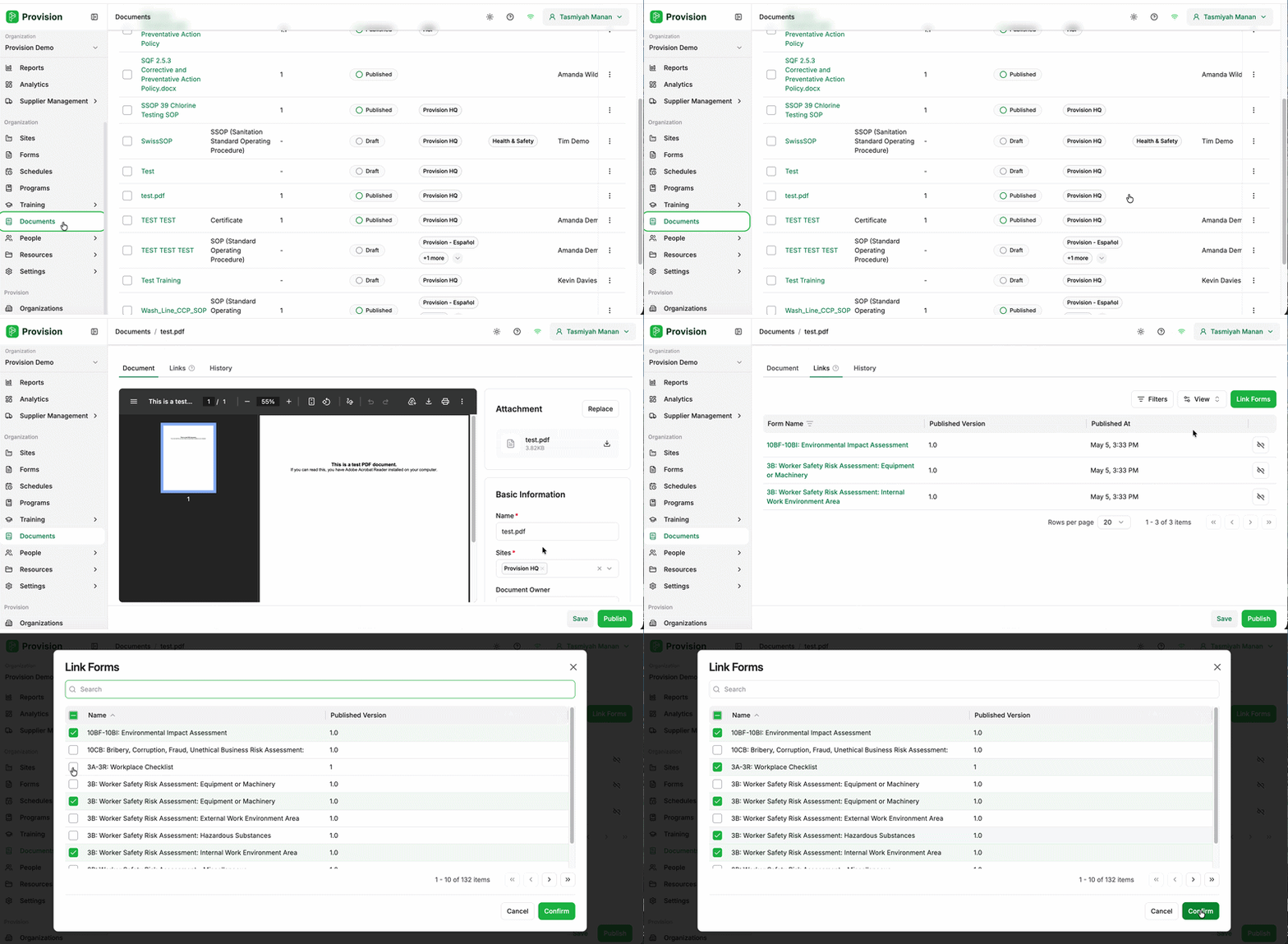
- Navigate to the Documents module.
- Locate the document you want to link forms to and select the three dots at the right-hand end of its row, then choose Edit.
- Select the Links tab at the top of the document editor.
- Click the green Link Forms button. The Link Forms dialog will open, displaying all available forms with their published versions. Use the search bar to find a specific form by name.
- Tick the checkbox next to each form you want to link.
- Select Confirm to save.
Documents must be published before they can be linked to forms. If a document isn't appearing as available, check that its status is Published rather than Draft.
Note: When publishing the document, check Republish linked forms with this version to update all linked forms at the same time. Linked forms will continue to reference the previous document version until they are republished.
The selected forms will appear in the Links tab, showing each form's name, published version, and published date.