![Logo_Icon-1.png]](https://support.provision.io/hs-fs/hubfs/Logo_Icon-1.png?height=40&name=Logo_Icon-1.png)
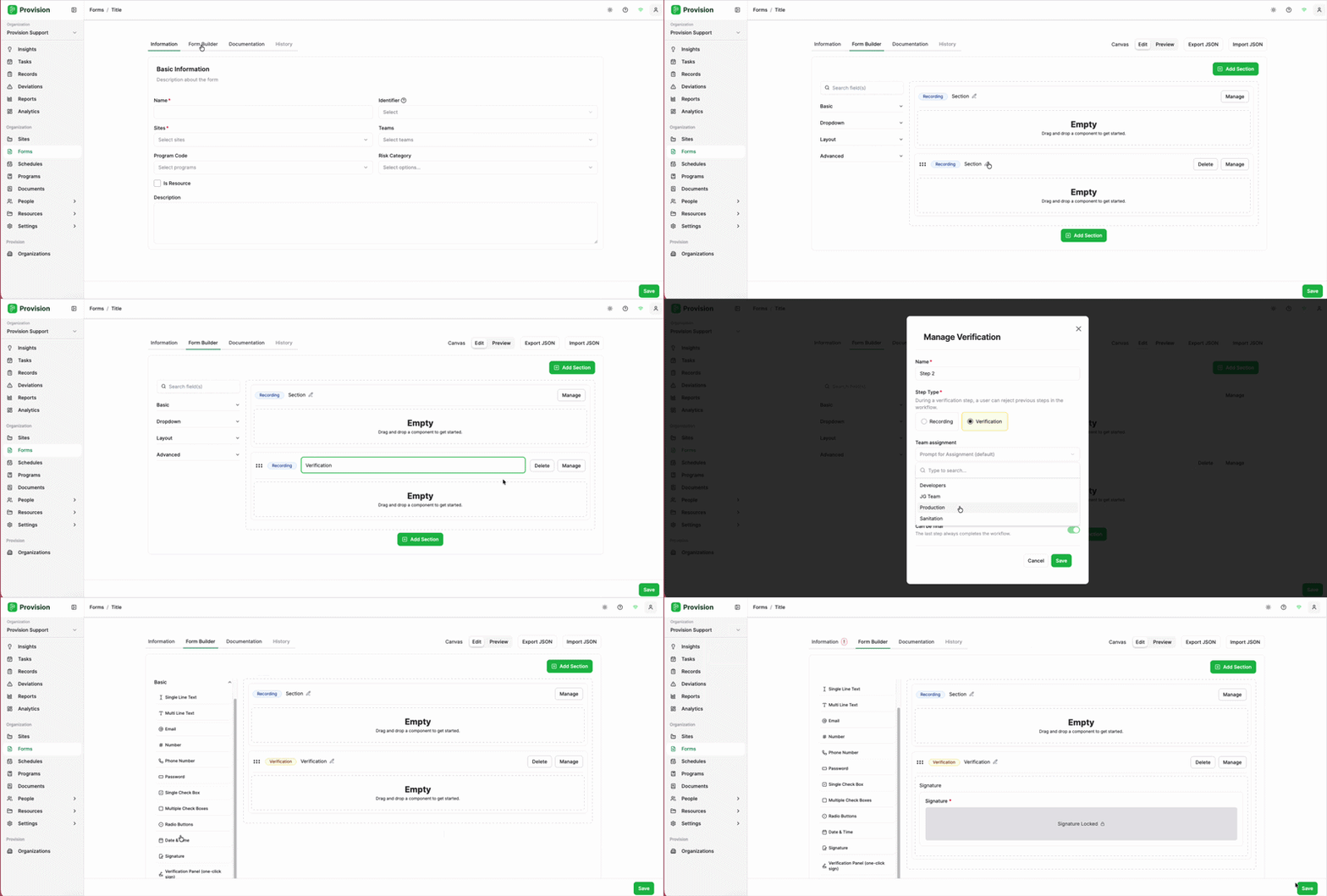
Each section of a form is assigned to a specific team or individual. When a form is being completed, that team or individual only has access to the section they are currently working on. Adding sections lets you build a step-by-step workflow.
- On the Form Builder tab, note that the first section is already in place. The first section is always a Recording section.
- To add more steps, select the green + Add Section button. Each new section becomes the next step in the workflow.
- To configure a section, select the Manage button on that section. In the Manage Section dialog, set the following:
- Name: Rename the section (for example, rename the first section to describe the step).
- Step Type: Choose Recording or Verification.
Note: The first section must always be a Recording section. Every section after it can be either type. In a Verification section, the assigned user can reject the form back to any previous step. - Team assignment: Select which team receives the form when it is submitted to this step.
Note: Team assignment is only available on steps after the first one. - Step Duration: Set how long the form can remain in this step before it becomes an overdue task.
Note: The default is one day. This can be changed to minutes, hours, or days.
- Click the green Save button in the Manage Section dialog to apply your changes.
Note: A common setup is a simple two-step workflow — a Recording section followed by a Verification section assigned to a reviewer.
Your workflow is now in place, with each section assigned to the correct team and step type.