![Logo_Icon-1.png]](https://support.provision.io/hs-fs/hubfs/Logo_Icon-1.png?height=40&name=Logo_Icon-1.png)
-
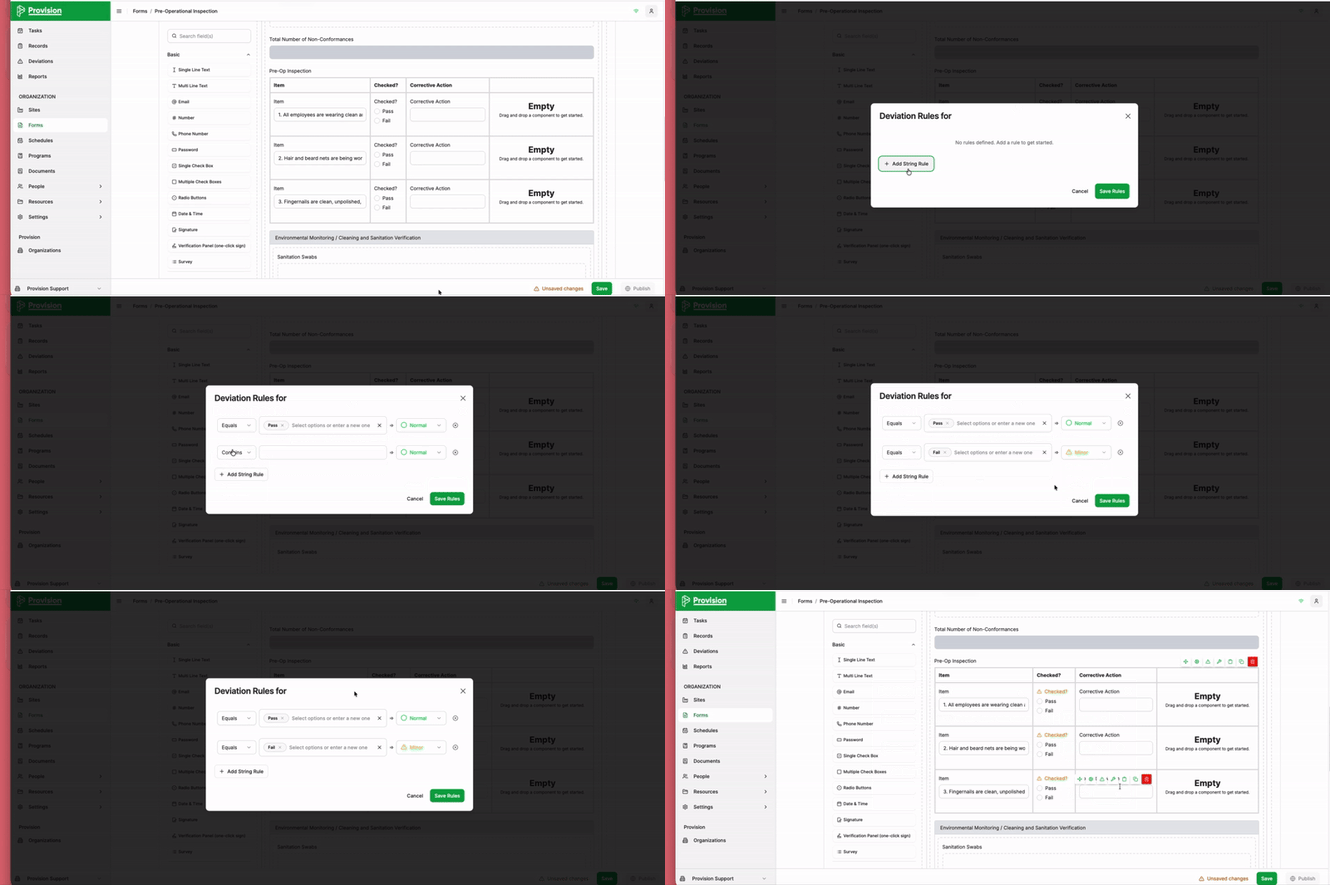
While editing a form template, locate the question field (e.g., a "Checked?" pass/fail field) where you want to apply a rule.
-
Hover over the field and select the Edit deviation rules icon (a small warning triangle with a gear) [+].
-
In the Deviation Rules for pop-up, select the + Add String Rule button.
-
Define your logic using the dropdown menus:
-
Condition: Choose from options like Equals, Does not equal, or Contains.
-
Value: Select the specific response that triggers the deviation (e.g., Fail).
-
-
Assign a severity level to the deviation by selecting the dropdown next to the green arrow (defaulted to Normal):
-
Normal
-
Minor
-
Major
-
Critical
-
-
To add multiple conditions (e.g., if you want "Pass" to be marked as Normal), select + Add String Rule again and repeat the process.
-
Once your logic is set, select the green Save Rules button.